When FolderMatch synchronizes two folders, it does so using a synchronization method chosen by the user. A synchronization method consists of a set of rules that define how the program handles files and subfolders.
Some examples of rules:
•Copy a newer file to the other folder
•Copy orphan items to the other folder
•Delete orphan files
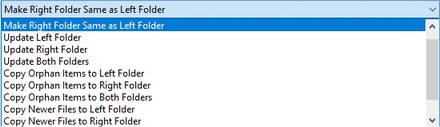
FolderMatch offers twelve predefined synchronization methods designed to meet most synchronization needs. However, if these methods do not meet your specific requirements, you can create a custom synchronization definition to tailor the process to your needs.
Make Left Folder Same as Right Folder
|
Makes the left folder identical to the right one. Deletes all orphan items in the left and copies all differing/orphan items from the right to the left.
|
Make Right Folder Same as Left Folder
|
Makes the right folder identical to the left one. Deletes all orphan items in the right and copies all differing/orphan items from the left to the right.
|
Update Left Folder
|
Updates the left folder with newer/orphan files from the right one. Replaces older files in the left with newer ones from the right and copies orphan items from the right to the left.
|
Update Right Folder
|
Updates the right folder with newer/orphan files from the left one. Replaces older files in the right with newer ones from the left and copies orphan items from the left to the right.
|
Update Both Folders (default)
|
Updates both folders with newer and orphan items from the other folder. This is the default synchronization method.
|
Copy Orphan Items to Left Folder
|
Copies all orphan files and folders from the right folder to the left folder.
|
Copy Orphan Items to Right Folder
|
Copies all orphan files and folders from the left folder to the right folder.
|
Copy Orphan Items to Both Folders
|
Copies orphan files and folders from either folder to the other folder. This is a bi-directional scheme.
|
Copy Newer Files Left
|
Copies newer files from the right folder to the left folder. Older files in the left folder are replaced with newer files.
|
Copy Newer Files Right
|
Copies newer files from the left folder to the right folder. Older files in the right folder are replaced with newer files.
|
Copy Newer Files to Both Folders
|
Copies newer files from each folder to the other folder. This is a bi-directional scheme.
|
Custom
|
If none of the predefined methods suit your needs, you can design your own. Choose one of four different actions for each result type: Leave, Copy, Replace, or Delete.
|
|
There are two places in the program where you can choose the synchronization method:
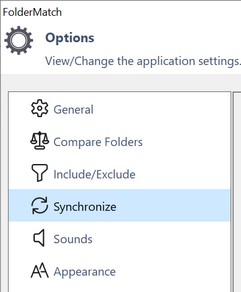
1.The Options window>Synchronize tab
Open the Options window and select "Synchronize" from the categories listed on the left side
2.The Synchronization Options dialog
This is the dialog box that comes up after you initiate a synchronization
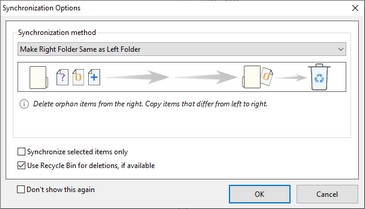
Whichever of these two locations you use, a list of synchronization methods is available. Choose one from the list or create your own.
|
Step 1. Choose "Custom" from the list of synchronization methods. (It's the last one in the list)
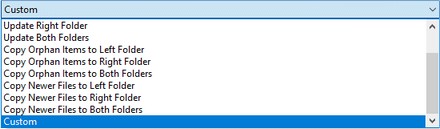
Step 2. Click the Custom synchronization definition link
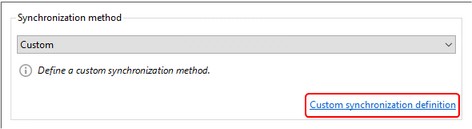
Step 3. Define the behaviors you want on the Custom Synchronization Definition window
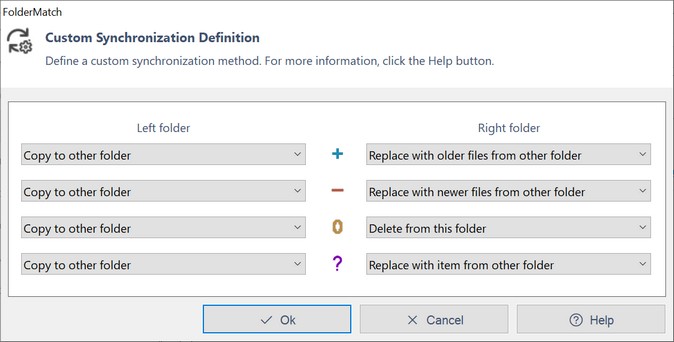 Custom Synchronization Definition window
You can choose one of four actions to take for each comparison result type in both folders: Leave, Copy to Other Folder, Replace, and Delete.
For example, to copy newer files in the left folder over to the right folder, select the "Copy to Other Folder" option from the Newer Files action list on the Left folder side.

Linked Options
As you explore this feature, you'll find that choosing certain options will automatically adjust settings in the corresponding folder. This happens because some options affect both sides of the synchronization process. For instance, if you decide to "Copy to Other Folder" for Newer Files in one folder, the program will automatically set the option for Older Files in the other folder to "Replace with Newer Files from other Folder".
Our custom synchronization definition feature understands these linked options, preventing you from making incompatible choices. You can rest assured that your synchronization settings are always accurate and effective.
Let’s look at two examples to help you get a better feel for this useful feature.
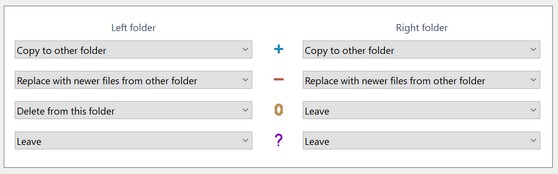
1.You want to replace older files with their newer counterparts in both folders and to delete all orphans from the left folder. (Do nothing with the other items.)
Here are the custom settings:
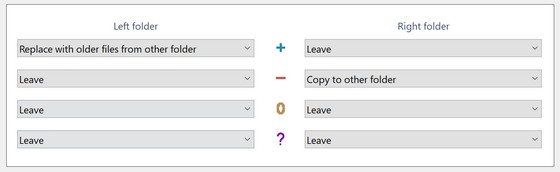
2.You want to undo changes you made to some files in the left folder. Therefore, you want to replace the newer files in the left folder with their older counterparts in the right folder. (Leave all other files unchanged.)
Here are the custom settings:
|
|

